ApexType AI Keyboard

Built for Chinese.Made for you.

Optimized for iPhone Duo. Also for other iPhone models and iPad.

Focus on what you want to say. Get Pinyin suggestions for mistyped letters, type Chinese and English together, and translate or polish right from the keyboard.

Free download · Requires iOS or iPadOS 26 or later

iPhone Duo

A little more room for your world.

Today’s meeting is at 3pm. There’s still time for coffee.

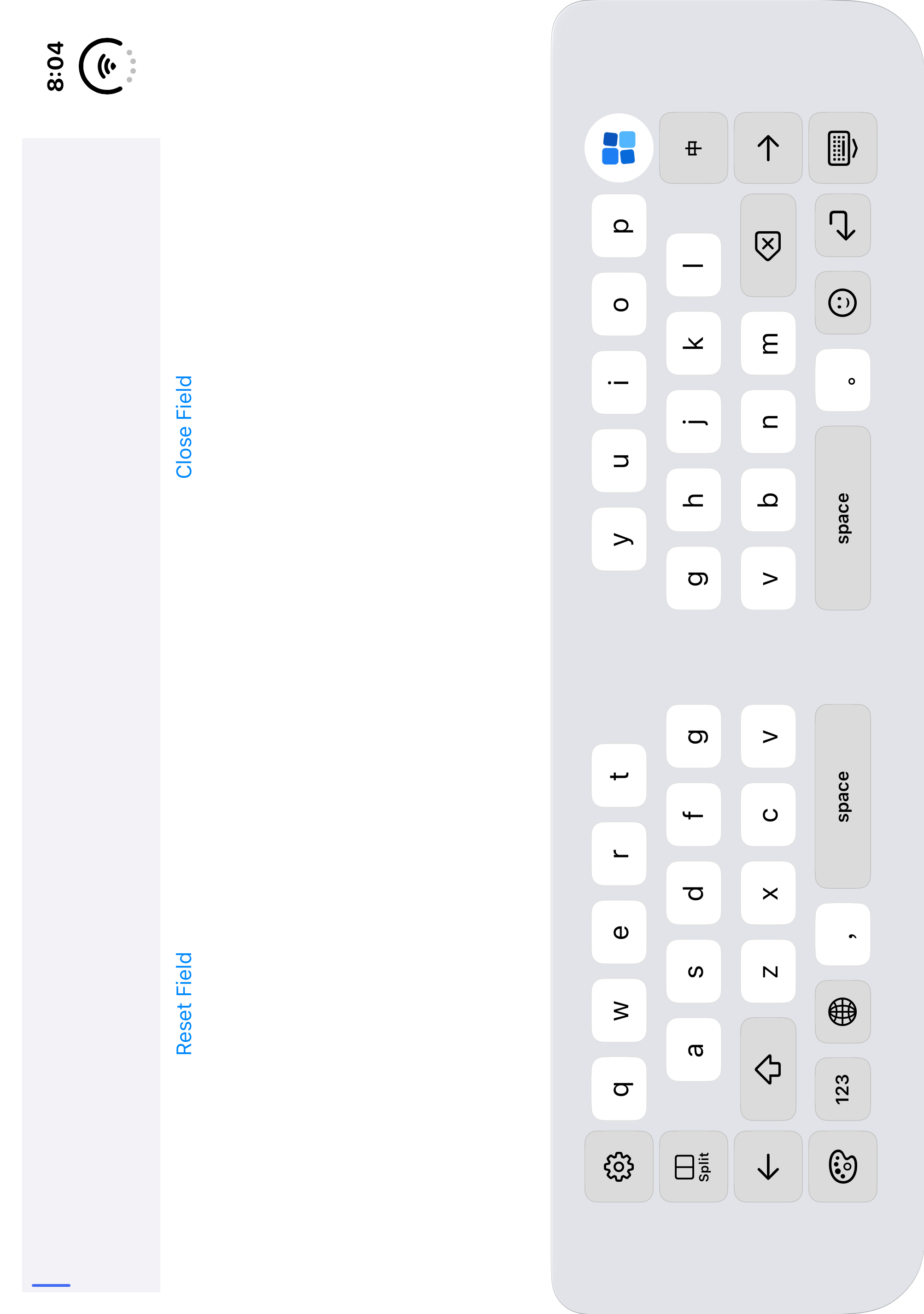
ApexType split keyboard with spaced keys, two space bars and a corner logo
Actual keyboard captures with illustrative reading content. Switch modes above to see the space you get back.
  • Split or joined on Duo
  • Collapse to a slim bar
  • Six typing languages

Preview ApexType 1.1

Edit mixed Chinese and English a phrase at a time, translate in the conversation, and bring website links back to the keyboard.

1.1 has been submitted to Apple. Check the App Store for the version available to download.

Translate in the conversation

Preview English and Simplified Chinese translations on supported devices, then insert the result in the same field. Review both versions side by side on the unfolded Duo and in wide iPad windows. Availability depends on the device, language packs and on-device model readiness.

Edit the part you mean

Press and hold a mixed suggestion to edit a Chinese phrase, an English name or a time. Look up a Chinese word in English while typing Pinyin offline. The keys stay in place as suggestions appear and are selected.

Fill it in once, write it in two languages

Enter a name, time or amount once and preview both languages. Share terminology and reusable templates in a bilingual pack.

Bring a webpage link back to the keyboard

Choose a search engine in ApexType and view pages in your default browser. Connect your own Brave Search service to preview results in the app. Share a webpage to ApexType to insert the link where you were typing.

Keyboard layouts

Big screen or small, room for your words.

Use a joined keyboard on a standard iPhone. On iPad, switch to split keys when the window is wide enough. The keys come together again in a narrow window.

Unfold a keyboard for both hands.

Open iPhone Duo and choose split or joined keys on the inner screen. In split mode, the spaced keys have a space bar on each side.

Collapse the keyboard. Keep reading.

Tap the keyboard button to collapse to a slim bar. Tap Expand to type again, or press and hold to hide it completely.

Make it yours

Adjust key height, add a number row or choose a light or dark appearance. Keep saved phrases and cursor controls within reach.

Pinyin corrections

A slip of the thumb shouldn’t stop a thought.

ApexType suggests corrections for nearby or repeated letters in Pinyin and keeps the original choices available. After accepting a correction, press backspace to get your original Pinyin back.

It remembers the words you reach for.

Your device remembers the Chinese words and mixed phrases you pick. When you type the same Pinyin again, familiar wording can appear sooner.

Typed Pinyin
zueshi
Correction candidate
这是

Illustrative examples, not a live input engine. Candidate order varies with context, touch position and your word choices.

Mixed input

中文 and English, in the same sentence.

Type a message like “今天 meeting 改到 3pm”. Use full Pinyin or initials, convert Japanese romaji, or compose Hangul with the Korean two-set layout.

Six languages. One familiar keyboard.

  • Simplified and Traditional Chinese
  • English
  • French
  • Spanish
  • Japanese
  • Korean

Translation and polishing

Say what you mean. Say it better.

Select text and tap the ApexType logo in the keyboard’s corner. Preview a translation or polished wording, then apply it when you’re ready. The same tools are available in the main app’s practice field.

Apple’s on-device translation and writing tools depend on your device and language. First use may require language downloads or Apple Intelligence setup.

  1. 01Select your text
  2. 02Preview a translation or polish
  3. 03Apply when you’re ready

Everyday typing stays local. AI sends are your call.

Typing, corrections and personalization are processed on your device. Use Apple’s on-device writing tools, or optionally connect your own server and OpenAI or Gemini account. ApexType asks before each send to a configured provider.

Getting started / Support

Make yourself at home.

Install ApexType from the App Store, then follow these three steps to enable the keyboard.

  1. 01

    Add your keyboard

    Open Settings → General → Keyboard → Keyboards → Add New Keyboard and choose ApexType.

  2. 02

    Switch to ApexType

    Tap a text field and choose ApexType with the globe key. Try it first in the main app’s practice field.

  3. 03

    Find your fit

    Choose split or joined keys on wide screens, then adjust the key height, the number row and appearance. Everyday typing does not require Full Access.

Good to know

Is it only for iPhone Duo?

It also works on standard iPhone and iPad, with iOS or iPadOS 26 or later. Split layouts are available on the Duo inner display and sufficiently wide iPad windows; narrow screens use joined keys.

Are the keyboard and AI free?

ApexType is free to download and use. Apple’s on-device features depend on your device and language. Optional third-party AI uses your own provider project, quota and billing.

Does it need a constant connection?

Everyday typing and word suggestions work offline. Downloading Apple language assets, preparing writing models for first use, or calling a configured third-party AI service requires the relevant network connection.

Need a hand?

Include your device, iOS version and what happened when you email us. Keep connection tokens, API keys and private drafts out of support emails.

contact@apexbyte.ai

Privacy policy

ApexByte Tech Inc. operates ApexType AI Keyboard. This policy applies to ApexType 1.0 and later.

Typing and Apple AI

Keyboard preferences are stored on your device. When you choose Apple on-device AI, ApexType processes drafts on your device. Language packs and writing models download from Apple.

Optional OpenAI and Gemini connections

You may connect an HTTPS provider server you control. ApexType saves the address and connection token in the device’s Keychain. The provider API credential stays on your server.

Before sending a draft, ApexType identifies the server and selected provider and asks for permission. That server receives the text and your writing choices, then sends them to the provider you chose. ApexByte does not receive those drafts. Your provider project handles usage and billing.

Third-party handling and retention depend on your server and provider. Google may use unpaid-quota content to improve its products, subject to Google’s terms. OpenAI API data handling · Gemini API terms

Web searches and shared links

Starting with ApexType 1.1, Find a Link opens a submitted query in your default browser. If you connect a Brave Search API project, your server forwards submitted queries to Brave and shows a preview in ApexType. Queries go through your browser or your own server. How they are handled depends on the browser, server and search provider. Brave Search API privacy notice

When you send or share a link to ApexType, its address is stored on your device and available to insert for 10 minutes. Use Remove Link in the app or keyboard to clear a pending link.

Your choices

Tap Clear to remove a practice draft. Choose Manage OpenAI or Manage Gemini in the AI menu to remove a saved connection from your device. Use your own server and provider settings to manage any data they retain.

Support correspondence

If you email us, ApexByte uses your address and the details you provide to answer and follow up on your request. Contact contact@apexbyte.ai with questions or requests about support correspondence.

Support

Open Settings → General → Keyboard → Keyboards → Add New Keyboard and choose ApexType. Then tap a text field and switch to ApexType using the globe key.

In the ApexType practice field, tap AI to translate or polish text. If translation needs language assets, tap Download pair. Polishing requires a supported device with Apple Intelligence ready.

Email contact@apexbyte.ai for help. Include your device, iOS version and what happened. Keep connection tokens, API keys and private drafts out of support emails.

Connect your own AI provider

This option is for users with an OpenAI or Gemini API project and an HTTPS server they control. Gemini API users must be 18 or older.

Download the server kit and setup instructions

  1. Set your provider’s API credential and a separate connection token in your server’s secret settings.
  2. Run the kit with Node.js or its Dockerfile. Give the server a trusted HTTPS address.
  3. In the ApexType app, tap AI → Apple on-device AI → Connect OpenAI or Connect Gemini. Enter the server address and connection token, then tap Connect.

Tap Try sample to check that your provider can answer. A sample request may use a small amount of your provider quota.

Preview Brave Search results in ApexType 1.1

Download the updated kit above. Set APEXTYPE_USER_BRAVE_SEARCH_API_KEY on your server and run it behind HTTPS. In ApexType 1.1, open Find a Link → Connect Brave for Previews, then enter your server address and connection token. Each search you submit uses your Brave Search API project. Browser search is available without connecting a server.